
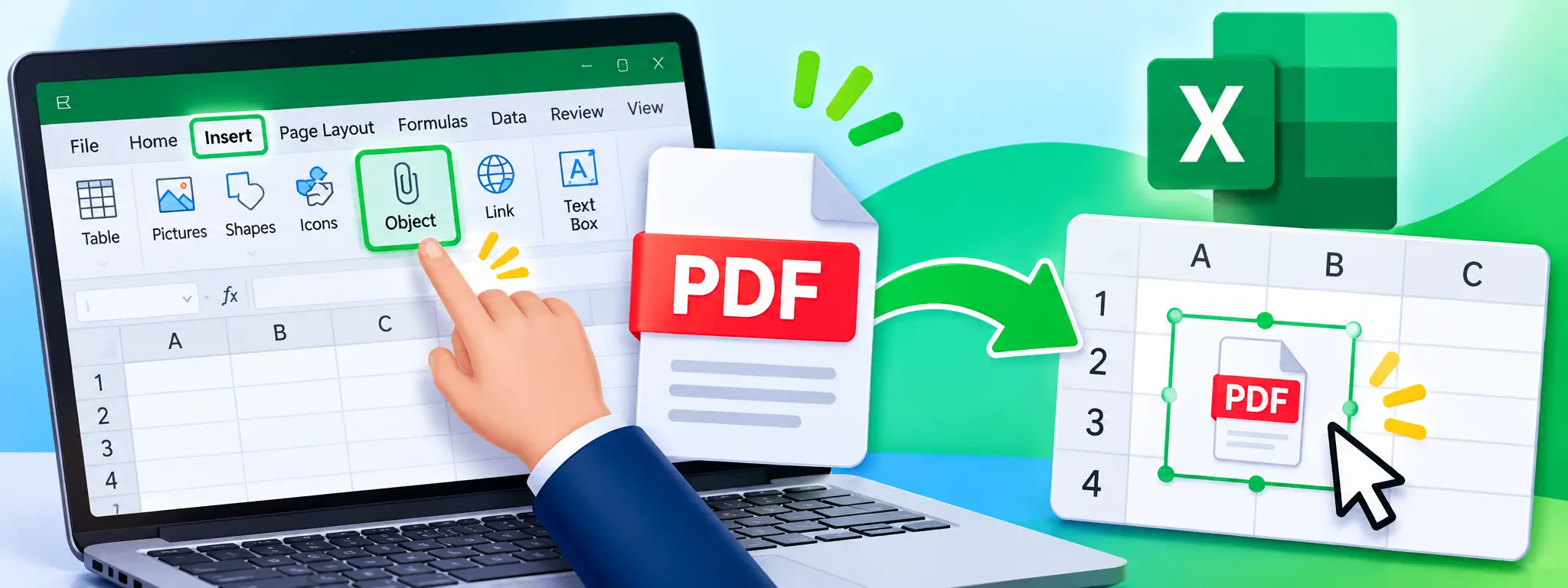
You can insert a PDF into an Excel workbook using the Insert > Object option in the desktop version of Microsoft Excel. This method lets you attach the complete PDF file or display it as a clickable icon inside a worksheet. You can also add a hyperlink to a PDF stored on your computer, OneDrive or SharePoint.
The best method depends on how you want people to access the document. Embedding stores a copy of the PDF inside the Excel workbook, while linking keeps the PDF as a separate file.
For example, you may want to attach invoices to a financial report, add product manuals to an inventory sheet or include receipts in an expense tracker. This guide explains how to complete these tasks without confusing PDF attachment with PDF-to-Excel conversion.
What Does It Mean to Insert a PDF into Excel?
Inserting a PDF into Excel means attaching a PDF document to a spreadsheet without converting its contents into spreadsheet cells.
Imagine you manage customer orders in Excel and keep a separate invoice for each order. You can attach those invoices to the workbook so that anyone reviewing the spreadsheet can open the supporting documents.
Excel offers two main ways to do this.
Embedded PDF: Excel stores a copy of the PDF inside the workbook. The attachment remains available even when you remove the original file from its separate folder.
Linked PDF: Excel stores a reference to the PDF's location. The document remains separate, and users open it through the link. Moving or deleting the original file may break the connection.
Both options are useful, but they serve different purposes. Embedding keeps documents together, while linking helps maintain a smaller and easier-to-share workbook.
How to Insert a PDF into Excel as an Embedded File
The desktop version of Excel provides an Object feature that allows you to insert an existing document into a worksheet.
Follow these steps on a Windows computer.
Step 1: Open your Excel workbook
Launch Microsoft Excel and open the workbook where you want to attach the PDF.
Select the worksheet that should contain the document. Click a cell near the location where you want the attachment to appear.
For example, you can place an invoice PDF beside its invoice number or add a product specification document near the relevant item.
Step 2: Open the Insert tab
Go to the ribbon at the top of Excel and select Insert.
Find the Text group. Depending on your Excel version and window size, the Object option may appear directly or inside a dropdown menu.
Click Object to open the dialog box.
Step 3: Choose Create from File
In the Object dialog box, select the Create from File tab.
This option allows you to attach an existing document instead of creating a new object.
Click Browse to locate the PDF on your computer.
Step 4: Select your PDF document
Navigate to the folder containing your PDF.
Select the required file and click Open. Excel will return you to the Object dialog box.
Check the selected file before continuing.
Step 5: Choose how the PDF should appear
Excel provides a checkbox called Display as icon.
You can choose between two options:
Display as icon: Excel places a PDF icon in the worksheet. Users can double-click it to open the complete document.
Display without an icon: Excel displays the document's first page as an object preview.
For most spreadsheets, displaying an icon is a practical choice. It saves worksheet space and makes the attachment easy to recognise.
Step 6: Click OK
After selecting your preferred display option, click OK.
Excel inserts the PDF object into your worksheet. You can drag it to another position or resize it using the available handles.
Double-click the inserted object to open the attached document. The computer must have a compatible application that can open the PDF.
Your PDF is now attached to the Excel workbook.
Important: The Object command and its available file types can depend on your Excel version and installed applications. When Excel does not support the PDF object on your system, use the hyperlink method explained below.
How to Insert a PDF into Excel as a Clickable Link
Embedding is not always necessary. When you want to keep the workbook small or share documents through cloud storage, a hyperlink can be a better option.
A hyperlink lets users open a separate PDF without storing the complete document inside the workbook.
Step 1: Store your PDF in a suitable location
Save the PDF in a folder that you and your intended recipients can access.
For shared workbooks, OneDrive, SharePoint or a shared network folder can help keep documents available.
Step 2: Select an Excel cell
Open your workbook and click the cell where you want the PDF link.
Enter descriptive text such as:
Open Invoice
View Report
Product Manual
Download Document
Clear labels help people understand what they will open.
Step 3: Open the Link option
Go to Insert > Link.
You can also right-click the selected cell and choose Link. In supported desktop versions, press Ctrl + K to open the hyperlink dialog box.
Step 4: Add your PDF location
Choose the option for an existing file or web page.
Browse to the PDF when it is stored locally. For an online document, paste its sharing URL.
Enter the display text that should appear in the worksheet.
Step 5: Confirm the link
Click OK to add the hyperlink.
The selected cell will now act as a clickable link. Click it to open the PDF from its saved location.
Keep in mind: A hyperlink may stop working when someone moves, renames or deletes the original PDF. For shared workbooks, use a stable cloud location and check that recipients have permission to open the document.
How to Display a PDF as an Icon in Excel
A PDF icon is useful when you want to attach documents without taking up much worksheet space.
For example, a finance workbook may contain several invoices. Displaying each document as an icon helps users identify the attachments without showing large previews across the sheet.
To display a PDF as an icon:
Open your workbook in the supported desktop version of Excel.
Select the worksheet where you want the attachment.
Go to Insert > Object.
Choose Create from File.
Browse and select your PDF.
Tick the Display as icon checkbox.
Click OK.
Excel places an icon in the worksheet. You can move or resize it as needed.
Add the PDF title in an adjacent cell so people can identify each attachment quickly.
How to Link a PDF Stored in OneDrive or SharePoint
Cloud storage makes it easier to share PDF documents with other people. Instead of embedding every document inside a workbook, you can store the PDFs online and add their sharing links to Excel.
This method works well when several people need access to the same documents.
Follow these steps
Upload your PDF to OneDrive or SharePoint.
Open the document's sharing settings.
Copy the sharing link that gives the intended recipients access.
Open your Excel workbook.
Select the cell where you want the link.
Choose Insert > Link.
Paste the sharing URL and enter descriptive display text.
Confirm the link.
For example, a document register could use these columns:
Document ID | Document Name | PDF Link |
|---|---|---|
INV-101 | January Invoice | Open Invoice |
INV-102 | February Invoice | Open Invoice |
INV-103 | March Invoice | Open Invoice |
This structure gives users a simple way to open the correct document without filling the workbook with large attachments.
Before sharing the workbook, test the links using an account that has the intended access permissions.
How to Prepare a PDF Before Inserting It into Excel
Sometimes the original document needs a little preparation before you attach it. You may need to remove unnecessary pages, correct its orientation, reduce its size or combine several related documents.
PDFClicks provides several tools for these tasks.
1. Compress a PDF to Reduce Its Size
Embedding large PDFs can increase the size of your Excel workbook. This may make the workbook slower to upload, download or share.
Use the Compress PDF tool to reduce the document's file size before attaching it.
The smaller PDF can be easier to manage, especially when your workbook contains several supporting documents.
2. Merge Multiple PDFs into One File
Suppose you have a purchase order, invoice and delivery receipt saved as separate PDFs. You may prefer to attach them as one organized document.
Open the Merge PDF tool, upload the files and arrange them in the correct order.
You can combine up to 20 PDFs, with a maximum size of 20 MB per file. Download the merged document and insert it into Excel.
3. Split a PDF to Keep Only Required Pages
Sometimes a PDF contains many pages, but you only need one or two of them in your workbook.
The Split PDF tool separates a PDF into individual pages. This helps you prepare smaller documents for invoices, reports or supporting records.
The tool accepts PDF files up to 20 MB.
4. Rotate PDF Pages Before Attaching Them
Scanned documents and phone photographs sometimes appear sideways or upside down.
Use the Rotate PDF tool to correct the page orientation before inserting the document. It supports 90-degree left, 90-degree right and 180-degree rotation.
The tool rotates every page in the uploaded document, so check the whole file before downloading it.
5. Unlock a PDF When You Know Its Password
A password-protected document may prevent other tools from opening or processing it.
When you have the current password and permission to remove the restriction, use the Unlock PDF tool.
Enter the existing password and download the unlocked copy. This tool does not recover or crack unknown passwords.
6. Protect a PDF Before Sharing It
Some documents contain confidential business information, financial details or personal records.
You can use the Protect PDF tool to add an opening password and set permissions for printing, editing or copying content.
Remember that password protection applies to the PDF itself. Anyone who needs to open the embedded document must have the correct password.
7. Sign a PDF Before Adding It to Excel
When your workbook includes signed agreements, approvals or completed forms, prepare the PDF before attaching it.
The Sign PDF tool lets you add a text-based signature and position it on the document.
Download the signed copy and then insert or link it in Excel.
8. Add a Watermark to a Supporting PDF
A draft report or internal document may need a visible label before you share it.
Use the Watermark PDF tool to add a watermark to your document. For example, a visible Draft or Confidential label can help readers understand how to handle the file.
Always check the final document before attaching it to your workbook.
9. Add Page Numbers to a Long PDF
When a workbook contains lengthy reports or supporting documents, page numbers make the PDF easier to review.
Use the Page Numbers tool to add page numbers before inserting the document.
This is especially useful for audit reports, research documents and multi-page records.
10. Edit PDF Content Before Attaching It
You may need to add a missing note, date, label or logo before placing a document in Excel.
The Edit PDF tool lets you add text, images and drawings to PDF pages.
It accepts one PDF at a time, up to 50 MB. Note that it adds new content to the page rather than rewriting the original PDF text.
11. Convert Images into One PDF Document
Sometimes supporting documents arrive as JPG or JPEG images rather than PDF files.
Use the JPG to PDF converter to combine your images into a single document. Each uploaded JPG or JPEG can be up to 20 MB.
You can then attach the finished PDF to your workbook.
Can You Insert a PDF into Excel Online?
Excel for the web has different capabilities from the desktop application.
The desktop Object method described earlier should not be assumed to work in every browser or mobile version. When the Object option is unavailable, add a hyperlink to a PDF stored in OneDrive or SharePoint.
Try this workflow:
Upload the PDF to OneDrive or SharePoint.
Copy its sharing link.
Open the workbook in Excel for the web.
Select the cell where you want the link.
Use the Insert Link option when available.
Paste the URL and add a descriptive label.
Save the workbook.
This method gives workbook users access to the online PDF without requiring an embedded object.
For mobile users, a cloud link is also a practical way to open supporting documents from Excel on Android or iPhone.
Can You Insert a PDF into Excel on Mac?
The available object-insertion options can differ between Excel versions and platforms.
Check the Insert menu in your installed Mac version of Excel. When the Object option supports the document type you want to attach, follow the available instructions.
Otherwise, save the PDF to a shared location and add a hyperlink to the worksheet.
This approach also makes it easier to share the workbook with people who use different operating systems.
How to Insert PDF Data into Excel Instead of Attaching the File
Some people search for how to insert a PDF into Excel when they actually want to move the tables and numbers inside a PDF into editable spreadsheet cells.
These are two different tasks.
Embedding a PDF attaches the document to the workbook. It does not automatically turn its tables into Excel rows and columns.
When you need editable data, use a PDF-to-Excel conversion method instead.
With the PDF to Excel converter, you can upload one PDF file up to 30 MB and export its data as XLSX or CSV. You can also choose all pages, a page range or specific pages.
This method is useful for:
Moving invoice tables into Excel
Extracting price lists from PDF documents
Working with financial tables
Reusing information without manually typing every value
When the source PDF contains scanned pages, the OCR PDF tool can recognize text and extract it as a TXT file. You can then review and reuse the recognized text where appropriate.
For another method of working with PDF content, the PDF to Word converter creates an editable Word document from a PDF.
You can also read our existing guide, How to Convert PDF Files to Excel Tables Online, for a more detailed explanation of table extraction.
How to Insert a PDF Page as an Image in Excel
Sometimes you do not need the complete PDF attachment. You may only want to show one page of a report, invoice or instruction sheet inside the worksheet.
In this case, you can convert the required PDF page into an image and insert that image into Excel.
Use the PDF to JPG tool to convert PDF pages into JPG images. Then open your workbook and choose Insert > Pictures to place the image on the worksheet.
This method displays the page visually rather than attaching the original PDF file.
It works well for charts, visual reports, page previews and reference images. However, the image itself will not behave like a complete PDF attachment.
Embedded PDF vs Linked PDF: Which Method Should You Use?
Both methods can make an Excel workbook more useful, but they solve different problems.
Feature | Embedded PDF | Linked PDF |
|---|---|---|
PDF stored inside workbook | Yes | No |
Workbook file size | Usually larger | Usually smaller |
Requires original file location | No | Yes |
Can open the complete PDF | Yes | Yes, while accessible |
Reflects changes to source PDF | No | Opens the linked source |
Suitable for shared workbooks | Less convenient | Often better |
Works after moving only the workbook | Yes | Not necessarily |
Choose embedding when you want to keep a self-contained copy of a PDF with the workbook.
Choose linking when you work with shared documents, want a smaller workbook or need to keep the PDF in a central cloud folder.
One more point matters for collaboration. Microsoft warns that inserting an object can disable AutoSave. For workbooks used by several people, Microsoft recommends links instead of embedded objects.
Common Problems When Inserting a PDF into Excel
The Object option is missing
The Object command may not appear in every Excel platform or ribbon layout.
First, check whether you are using the desktop application. Expand the Insert ribbon and look in the Text group.
When the command is unavailable, add a hyperlink to the PDF instead.
The PDF does not open after insertion
An embedded PDF may require a compatible PDF reader to open.
Check whether your computer has a PDF application installed. Also make sure the file is not blocked by security settings.
The PDF icon appears, but the document is missing
This can happen when you inserted a linked file and later moved or renamed the original PDF.
Check the source file location and update the link. A linked document needs to remain available at its saved location.
The Excel workbook becomes too large
Embedding a large PDF increases the workbook's file size because Excel stores a copy of the document.
Use a hyperlink when you want to keep the workbook smaller. You can also reduce the PDF's size with the Compress PDF tool before embedding it.
Other people cannot open the PDF
A linked PDF may require access permissions. For cloud documents, check the OneDrive or SharePoint sharing settings.
When the PDF is password-protected, give the authorized recipients the correct password through a suitable secure channel.
The workbook stops saving automatically
Microsoft notes that inserting an embedded object disables AutoSave.
For workbooks used collaboratively, use a cloud-based PDF link instead of embedding the document.
Frequently Asked Questions
Can I insert a PDF into an Excel cell?
You can place a PDF object near a selected cell in the worksheet. Excel does not store the PDF as ordinary cell content. You can also add a hyperlink directly to a cell.
Can I insert multiple PDF files into one Excel workbook?
Yes. In supported desktop Excel versions, you can repeat the Object insertion process for different PDF files. You can also create separate hyperlinks for each document.
Can I insert a PDF into Excel as an icon?
Yes. Open Insert > Object, select Create from File, choose your PDF and tick Display as icon before confirming.
Does embedding a PDF increase the Excel file size?
Yes. Excel stores a copy of an embedded PDF inside the workbook, which increases its size. A hyperlink usually takes less space because the PDF remains a separate file.
Can I edit the PDF after inserting it into Excel?
The inserted PDF is an attachment, not editable worksheet content. Double-clicking an embedded object can open it in a compatible PDF application, where you may be able to edit it separately.
What happens if I delete the original PDF after embedding it?
An embedded PDF remains stored in the workbook, so deleting the separate original file does not remove the embedded copy.
However, a linked PDF depends on its original location. Removing or moving that file can break the link.
Can Excel convert a PDF into spreadsheet cells?
The Object feature attaches a PDF rather than extracting its contents. To place PDF tables into editable cells, use a PDF to Excel converter.
Can I insert a PDF into Excel without Adobe Acrobat?
You can create a PDF object using Excel's Insert Object feature when the required PDF object support is available on your computer. However, opening the attachment requires a compatible PDF reader.
How can I reduce the size of an embedded PDF?
Compress the original document before inserting it into Excel. A smaller PDF can help keep the workbook easier to store, upload and share. You can use the PDFClicks Compress PDF tool.
Final Thoughts
Inserting a PDF into Excel is useful when a spreadsheet needs supporting documents such as invoices, reports, receipts or product specifications.
Use the Object feature in supported desktop versions of Excel when you want to embed a PDF inside the workbook. Choose a hyperlink when the document should remain in a separate folder or shared cloud location.
Before attaching the document, prepare it properly. You may need to compress it, combine related PDFs, separate unnecessary pages, correct its orientation or add a signature.
Most importantly, remember that attaching a PDF and converting its contents into Excel cells are different tasks. Choose the method that matches your goal, then test the workbook and its PDF links before sharing it.