
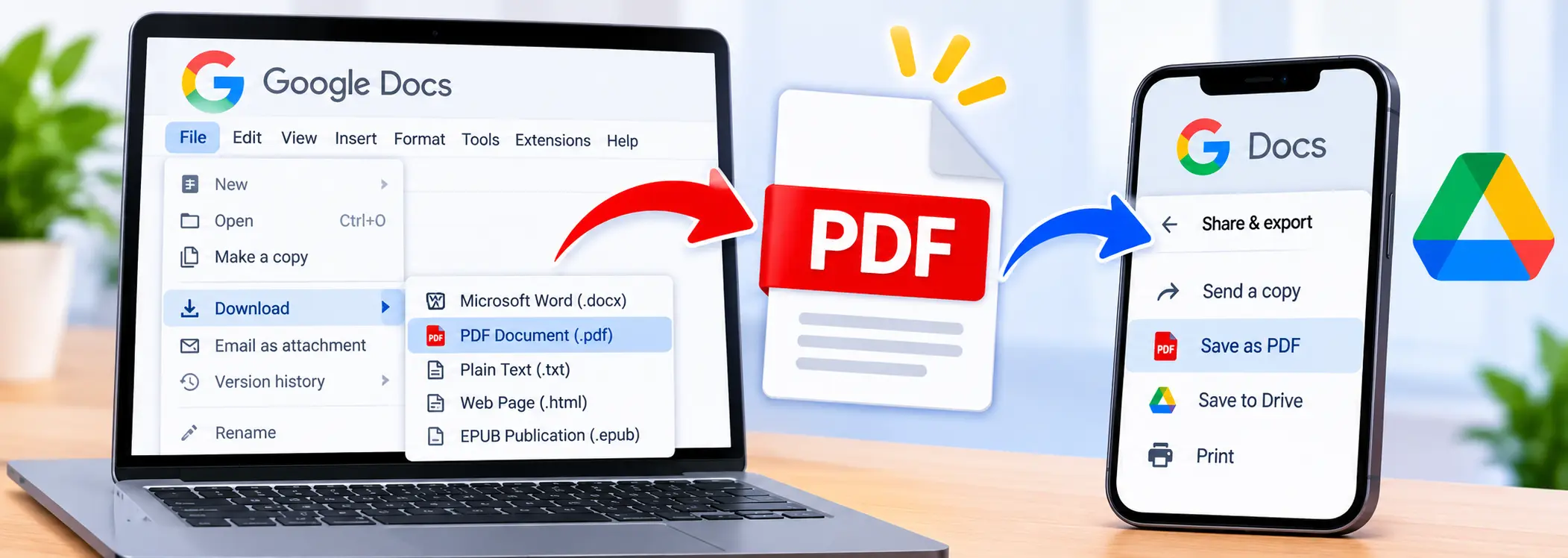
You can save a Google Docs document as a PDF by opening it, selecting File > Download > PDF Document (.pdf) on a computer, and saving the downloaded file. On Android and iPhone, open the Google Docs app, tap the three-dot menu and use Share & export to create a PDF copy.
This process keeps your original Google Doc in Google Drive. You get a separate PDF file that you can email, print, upload to a website or share with someone who does not use Google Docs.
This guide covers the desktop and mobile methods, explains how to control the PDF layout, and shows how to fix common export problems.
Why Save a Google Doc as a PDF?
Google Docs is useful for writing and editing documents online. However, you may need a PDF when you want to share a finished version that looks consistent across different devices.
For example, a PDF works well when you need to:
Submit a CV or job application.
Send an invoice to a customer.
Share an assignment with a teacher.
Email a business report.
Print a document without changing its layout.
Upload a form to an online portal.
A PDF also gives you a separate copy of your document. You can continue editing the original Google Doc without changing the PDF you already downloaded.
How to Save Google Docs as PDF on a Computer
The desktop method is simple. You can download a PDF directly from Google Docs without installing another program.
Step 1: Open Google Docs
Open your browser and visit Google Docs.
Sign in to your Google account if needed. Open the document you want to convert.
Before exporting, review the content and make sure the document contains the latest changes.
Step 2: Open the File Menu
At the top-left corner of the document, click File.
A menu will appear with options for downloading, printing and managing your document.
Step 3: Select Download
Move your cursor to Download.
Google Docs will show different file formats. Choose PDF Document (.pdf) from the list.
Step 4: Wait for the PDF to Download
Google Docs will create a PDF copy and download it to your computer.
Depending on your browser settings, the file may appear in the Downloads folder or another location you selected.
Step 5: Open and Review the PDF
Find the downloaded document and open it in a PDF reader or your browser.
Check the text, images, tables, page breaks and margins. Make sure everything appears as expected before sending the file.
Your original Google Doc remains in Google Drive. Downloading the PDF does not replace or delete it.
How to Save a Large Google Doc as PDF Using Chrome
Sometimes a large document does not download properly through the normal export option. Google also documents a print-to-PDF method for large Google Docs files in Chrome.
Follow these steps:
Open your Google Doc in Chrome.
Click File in the top menu.
Select Print.
In the print window, find the Destination setting.
Choose Save as PDF.
Click Save.
Select a folder and enter a file name.
Chrome will save a PDF version of the document to your computer.
This option is useful when the document contains many pages or the normal download method does not work as expected.
How to Save Google Docs as PDF on Android
You can export a Google Doc as a PDF directly from the Google Docs app on an Android phone or tablet.
Step 1: Open the Google Docs App
Open the Google Docs app on your Android device.
Find the document you want to convert and open it.
Step 2: Tap the Three-Dot Menu
Look at the top-right corner of the screen and tap the three vertical dots.
This opens the document menu.
Step 3: Select Share & Export
Tap Share & export to view the available sharing and download options.
Depending on your app version, you may see options such as Save as or Send a copy.
Step 4: Choose PDF Document
Select Save as and choose PDF Document (.pdf) when this option appears.
Alternatively, choose Send a copy, select PDF and continue.
Step 5: Save the PDF
Confirm the export. When you use Send a copy, choose where to save or share the generated PDF.
If you save it to your phone, check the Downloads folder or the location selected in the sharing menu. A copy saved to Drive will remain available in your Google account.
Your Android phone now has a PDF version of the Google Doc.
How to Save Google Docs as PDF on iPhone or iPad
iPhone and iPad users can export a Google Doc as a PDF through the Google Docs app.
Step 1: Open the Google Docs App
Launch the Google Docs app on your iPhone or iPad.
Select the document you want to save as a PDF.
Step 2: Tap the Three-Dot Menu
Open the document and tap the three-dot menu in the top-right corner.
This menu contains options for sharing, exporting and managing the document.
Step 3: Open Share & Export
Tap Share & export.
Choose Send a copy from the available options.
Step 4: Select PDF
A format selection window will appear.
Choose PDF and tap OK. Google Docs will prepare a PDF copy of your document.
Step 5: Save the PDF to Files
The iPhone sharing menu will appear after the export.
Select Save to Files, choose a folder such as On My iPhone or iCloud Drive, and tap Save.
You can now open the PDF from Apple's Files app.
Tip: The PDF copy is separate from the Google Doc. Changes you make later in Google Docs will not automatically update the PDF you already saved.
How to Save Google Docs as PDF Without Losing Formatting
A PDF should look clean and readable when someone opens it. However, wide tables, large images, unusual margins or page settings can change how a document appears after export.
Check these settings before downloading your PDF.
1. Choose the Correct Page Size
Open the page setup options in Google Docs and select a suitable paper size.
A4 works well for many international documents. Letter is common for documents prepared for US and Canadian use.
Choose the size required by your school, employer or receiving organization when they specify one.
2. Check Page Orientation
Use portrait orientation for letters, CVs and reports with normal text.
Landscape orientation works better for wide tables, charts and documents that need more horizontal space.
On a computer, open File > Page setup and choose the required orientation.
3. Review Margins
Margins control the blank space around the document content.
Very narrow margins can make a page look crowded. Large margins may push content onto extra pages.
Review the page layout before exporting, especially when your document contains tables or images.
4. Check Images and Tables
Large images may move or resize when the document is printed or exported.
Wide tables can also become difficult to read when they do not fit the page width.
Open the print preview and check that no important information has been cut off.
5. Use Pages Format When You Need Fixed Pages
Google Docs supports both Pages and Page less document layouts.
Page less format is useful for online reading, but the printed result may look different from what you see while editing. Images may adjust to page width, and wide tables may shrink to fit.
When you need a controlled page layout, switch to Pages format and review the print preview before saving the PDF.
How to Save Only Selected Pages from Google Docs as PDF
Sometimes you do not need the complete document. You may only want to send a few pages from a long report or assignment.
On a computer, use the print option:
Open your Google Doc.
Select File > Print.
Open the page range options in the print window.
Enter the page numbers you want to include, such as 1–3 or 5–7.
Choose Save as PDF as the destination.
Save the new file.
Check the page range carefully before saving.
When you have already downloaded the complete PDF, you can also use PDFClicks Split PDF to separate selected pages or page ranges into smaller documents.
For more control over page order, deletion and arrangement, use the Organize PDF tool.
What to Do After Saving Your Google Doc as PDF
After exporting, you may need to prepare the document for email, upload, printing or business use. PDFClicks provides several tools that can help with these tasks.
Compress a PDF Before Emailing or Uploading
A large PDF may exceed an email attachment limit or an online form's upload limit.
Use PDFClicks Compress PDF to reduce the file size before sharing it.
This can make a PDF easier to upload or send without changing the original Google Doc.
Add a Password to Protect the PDF
Some documents contain private information, such as financial records, contracts or personal details.
Use Protect PDF to add password protection before sharing the document.
Send the password through a separate, suitable channel rather than placing it in the same email as the PDF.
Sign a PDF Before Sending It
A document may need a signature after you export it from Google Docs.
Open PDFClicks Sign PDF to create a typed, drawn or image-based signature and place it on the required page.
Review the document after signing and confirm that the signature appears in the correct position.
Merge Multiple Google Docs PDFs
Imagine you have exported a proposal, budget and project summary as three separate PDFs. You may want to send them as one document.
Use Merge PDF to combine the files in the correct order.
The tool accepts up to 20 PDF files, with a maximum size of 20 MB per file.
When you also need to reduce the combined file size, try Merge and Compress PDF.
Add Page Numbers to the Exported PDF
Page numbers make long reports and multi-section documents easier to review.
You can add page numbers in Google Docs before exporting. Alternatively, use PDFClicks Page Numbers to number the pages in an existing PDF.
Add a Watermark to the PDF
You may want to label a document as Draft, Sample or Confidential before sharing it.
Use Watermark PDF to place a visible text watermark on your PDF pages.
This can help readers understand how to handle the document.
Edit the PDF After Exporting
Sometimes you notice a missing note, label or image after downloading the PDF.
You can use Edit PDF to add text, insert images or draw on the pages.
The tool adds new content to the page. It does not rewrite the original text already inside the PDF.
Fix Pages That Appear Sideways
A page may appear rotated when a document contains imported images or scanned content.
Use Rotate PDF to correct the page orientation before sending the document.
Repair a PDF That Will Not Open
When the downloaded file shows an error or refuses to open, try Repair PDF.
The repair tool attempts to recover a damaged PDF, although recovery is not guaranteed for every file.
Common Problems When Saving Google Docs as PDF
The PDF Download Does Not Start
First, check your internet connection and browser download settings.
Try downloading the document again. You can also use File > Print > Save as PDF in Chrome as an alternative.
The Downloaded PDF Is Blank
Make sure the Google Doc contains saved content before exporting.
Open the original document again and check whether the text and images appear correctly. Then try exporting another copy.
The PDF Formatting Looks Different
Check whether your document uses Page less format, wide tables, unusual margins or large images.
Switch to Pages format when you need fixed page breaks. Review the print preview and correct any layout problems before exporting again.
The PDF File Is Too Large
Large images and long documents can increase PDF size.
Try reducing unnecessary image sizes before exporting. After downloading, use the Compress PDF tool to make the file smaller.
The PDF Does Not Appear on My Phone
Check the folder or destination you selected during export.
Android users can check Downloads or the selected Drive location. iPhone users can open the Files app and check the folder selected in the sharing menu.
I Cannot Download the Google Doc
Check whether you have permission to download the document. If someone else owns the file, they may restrict downloading or copying for viewers and commenters.
Ask the owner for an accessible PDF copy when necessary.
Frequently Asked Questions
How do I save Google Docs as PDF for free?
Open your document in Google Docs, select File > Download > PDF Document (.pdf) on a computer, and save the file. The Google Docs mobile app also offers PDF export through its sharing and export options.
Can I convert Google Docs to PDF without downloading software?
Yes. Google Docs has a built-in PDF export option. You can create a PDF through your browser or the mobile app without installing a separate conversion program.
Does saving Google Docs as PDF delete the original document?
No. Exporting a PDF creates a separate copy. Your original Google Doc remains in Google Drive.
Can I save Google Docs as PDF on my phone?
Yes. Android and iPhone users can open a document in the Google Docs app, use the three-dot menu and select the PDF export option.
Can I save only one page of a Google Doc as PDF?
Yes. On a computer, open File > Print and enter the page range you want to save. You can also download the complete PDF first and separate the required pages using a PDF splitter.
Why does my Google Docs PDF look different from the original?
The difference may come from page size, margins, image placement, table width or Page less formatting. Review the print preview and switch to Pages format when you need fixed page layouts.
Can I edit a PDF after exporting it from Google Docs?
Yes. You can add text, images or drawings using an online PDF editor. However, adding new content is different from changing the original text inside the PDF.
How can I reduce the size of a Google Docs PDF?
Download the PDF first, then upload it to a PDF compression tool. This can reduce the file size and make sharing easier.
Can I password-protect a Google Docs PDF?
Yes. Export the document as a PDF and use a PDF protection tool to add an opening password before sharing it.
How do I convert a PDF back to Google Docs?
That is the reverse process. You can use Google Drive or a PDF-to-document conversion tool to create an editable document. For a separate guide, read How to Convert PDF to Google Docs.
Final Thoughts
Saving Google Docs as PDF is simple when you use the built-in export options. Desktop users can select File > Download > PDF Document, while Android and iPhone users can export a PDF from the Google Docs app.
Before sharing your file, check its page layout, images, tables and page order. When necessary, compress the PDF, add a password, sign it or combine it with other documents.
A quick review after export helps you send a clean PDF that is ready to print, upload or share.