
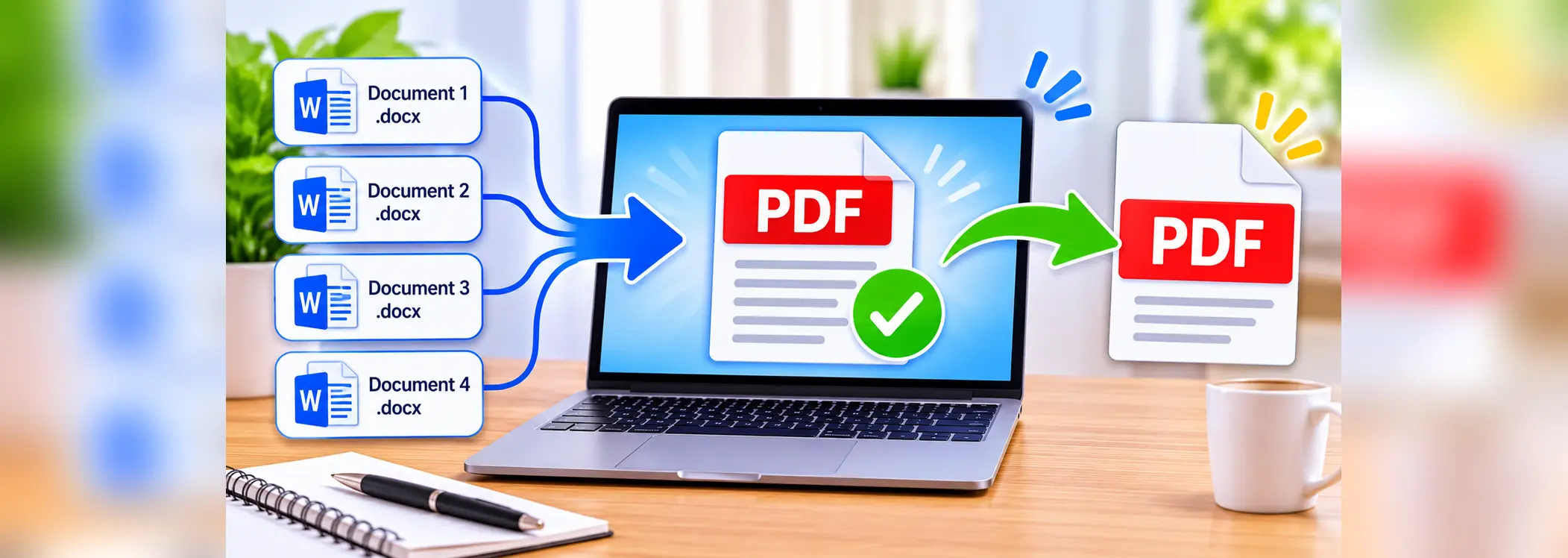
When you have several Word documents but need to submit or share them as one PDF, you do not have to copy everything manually into a new file. You can convert each Word document into a PDF and then combine the resulting files into one document.
For example, you might have a resume, cover letter, certificates, and experience letters saved as separate DOC or DOCX files. Converting them individually and merging the PDFs gives you one file that is easier to send, upload, print, or store.
There are two useful ways to complete this task. You can combine the Word files first and export one PDF, or convert each file separately and merge the PDFs afterward.
This guide explains both methods and shows how to use PDFClicks to complete the conversion and merging process.
What Is the Best Way to Combine Multiple Word Files into One PDF?
The right method depends on how your Word documents are formatted and how you want the final PDF to look.
Your situation | Recommended method |
|---|---|
Each Word file has a different layout | Convert each file to PDF, then merge |
You want to keep each document's layout separate | Convert first, then merge |
You need continuous page numbering | Combine the documents in Word first |
You want one consistent document style | Create one master Word document |
You need a quick online workflow | Use PDFClicks Word to PDF and Merge PDF |
For most people working with separate reports, certificates, applications, or business documents, converting each file into a PDF first is a straightforward option.
If you need one continuous report with a shared table of contents and page numbering, combining the content inside Word before exporting may be a better choice.
Method 1: Convert Multiple Word Files into PDF and Merge Them Online
This method works well when your Word documents are already complete and you want to keep their individual layouts.
PDFClicks provides two tools for this workflow:
Word to PDF converter to convert DOC and DOCX files into PDF.
Merge PDF tool to combine the converted files into one document.
The Word to PDF tool supports DOC and DOCX files up to 20 MB. The Merge PDF tool accepts between 2 and 20 PDF files, with a maximum size of 20 MB per file.
Step 1: Prepare Your Word Documents
Before converting anything, collect all the Word files you want to include in the final PDF.
For example, a job application might contain:
Cover letter
Resume
Educational certificates
Experience letters
Additional supporting documents
Save all the files in one folder so they are easy to find.
Give them clear names and use numbers to show their intended order.
For example:
01-Cover-Letter.docx
02-Resume.docx
03-Educational-Certificates.docx
04-Experience-Letters.docx
This simple step makes it easier to arrange the files correctly later.
Also check that each document is complete. Correct spelling, dates, names, headings, and other important details before converting.
Step 2: Convert Each Word Document into PDF
Once your files are ready, convert them into PDF format.
Open the PDFClicks Word to PDF tool.
Follow these steps:
Select your first Word document.
Upload the DOC or DOCX file.
Start the conversion.
Wait for the process to finish.
Download the converted PDF.
Repeat these steps for every remaining Word document.
The tool supports Word files up to 20 MB each.
For example, your converted files might be:
01-Cover-Letter.pdf
02-Resume.pdf
03-Educational-Certificates.pdf
04-Experience-Letters.pdf
Keep the converted files together in one folder. This makes the next step easier.
Important: The PDFClicks Word to PDF tool converts Word files into PDFs. It does not combine multiple Word documents into one PDF in a single conversion. You need to convert the documents and then use the merging tool.
Step 3: Open the Merge PDF Tool
After converting all your Word files, open the PDFClicks Merge PDF tool.
This tool combines multiple PDF documents into one file.
You do not need to install desktop software or manually copy pages from one PDF to another.
Select the converted PDF files from your device and add them to the upload area.
Make sure you select the PDF versions rather than the original Word files.
Step 4: Arrange the PDF Files in the Correct Order
Before merging, review the order of your uploaded documents.
The order matters because it determines how the pages will appear in the final PDF.
For example, if you are preparing a job application, the cover letter should usually appear before the resume and supporting certificates.
A business report may need a different order:
Cover page
Executive summary
Main report
Financial information
Supporting documents
Arrange the files according to the sequence you want.
Check the filenames and page order carefully before starting the process.
Step 5: Merge the PDF Files
Once everything is in the correct order, start the merging process.
PDFClicks will combine your selected PDF files into one document.
Wait for processing to finish and download the resulting PDF.
Give the final file a meaningful name.
Some examples include:
Complete-Job-Application.pdf
Business-Project-Report.pdf
University-Assignment.pdf
Client-Documents.pdf
Now you have one PDF containing the content of your separate Word documents.
Step 6: Review the Final PDF
Before sharing your document, open it and check every section.
Make sure:
All Word documents are included.
The pages appear in the correct order.
Tables and images are visible.
Headings and paragraphs are readable.
No pages are missing or duplicated.
Important dates and signatures are correct.
The final PDF opens properly.
This is especially important when preparing official documents, academic submissions, business reports, and job applications.
A quick review can help you catch formatting problems before the file reaches its recipient.
Method 2: Combine Word Documents First and Save Them as One PDF
Another option is to combine the content of your Word files into one master document before converting it.
This approach is useful when you want a continuous document with one consistent structure.
For example, a long report may have separate chapters saved as different Word files. You can bring those chapters together in one master Word document and export the final version as a single PDF.
Microsoft Word provides an option called Text from File for inserting the contents of another document into an existing document.
Step 1: Create a Master Word Document
Open Microsoft Word and create a new blank document.
Give it a suitable name, such as:
Complete-Project-Report.docx
This will become the main document where you combine the other Word files.
Step 2: Insert the Other Word Files
In the desktop version of Microsoft Word for Windows:
Open your master document.
Place the cursor where you want the next document's content to appear.
Open the Insert tab.
Select the arrow next to Object.
Choose Text from File.
Locate the Word document you want to insert.
Select it and insert its contents.
Repeat the process for the remaining documents.
You can add a page break between sections when you want each document to start on a new page.
Microsoft provides further instructions in its official guide: Insert a document in Word.
Step 3: Review the Combined Word Document
After inserting all your files, review the master document carefully.
Pay attention to:
Heading styles
Page margins
Font sizes
Tables and images
Page breaks
Headers and footers
Page numbering
Different Word documents may use different formatting settings. Review the combined document instead of assuming everything will look the same.
Microsoft also notes that headers and footers may need their own sections when inserting document content.
Step 4: Save the Master Document as PDF
When the combined Word document is ready:
Open the File menu.
Select Save As or Save a Copy.
Choose where you want to save the file.
Select PDF as the file format.
Give the file a name.
Save or export it.
You now have one PDF containing all the combined Word content.
You can follow Microsoft's official instructions here: Save or convert to PDF in Office.
Which Method Should You Choose?
Both methods can create one PDF from multiple Word files, but they are useful in different situations.
Feature | Convert and merge PDFs | Combine inside Word |
|---|---|---|
Main process | Convert each file, then merge | Insert files into a master document |
Best for | Separate reports and documents | One continuous report |
Individual layouts | Easier to keep separate | May need formatting adjustments |
Shared page numbering | Requires extra preparation | Easier to manage in the master document |
Software required | Browser-based PDF tools | Microsoft Word desktop app |
Best use case | Applications, certificates, separate reports | Books, chapters, long reports |
My recommendation: Use the PDFClicks method when your Word documents are already finished and you want to combine them without rebuilding the original content in one Word file.
Choose the Word-first method when you need more control over the overall document structure, section breaks, and page numbering.
What If a Word File Is Too Large to Convert?
The PDFClicks Word to PDF tool accepts DOC and DOCX files up to 20 MB.
If a Word document is larger than this, reduce its size before uploading it.
You can try these steps:
Resize large photographs before inserting them into Word.
Remove unnecessary images and graphics.
Delete unused pages and content.
Avoid inserting duplicate high-resolution pictures.
Save a fresh copy of the reduced document.
If the converted PDF is larger than 20 MB, you can also try the Compress PDF tool before adding it to the Merge PDF tool.
The compression result depends on the document's contents. Check the new file size before uploading it for merging.
How to Get Continuous Page Numbers in the Final PDF
One common problem with separate Word documents is page numbering.
For example, you may have three files, and each one starts its page numbering from 1.
After converting and merging them, the final PDF may contain several pages labelled as page 1.
If you need continuous numbering throughout the final report, consider combining the documents in Word first and adding page numbers to the master document.
If your merged PDF only needs a simple page-number sequence, PDFClicks also provides an Add Page Numbers tool.
It lets you choose the position, number format, starting number, and whether to skip the first page. Upload a final PDF within its 20 MB limit.
Common Problems When Combining Word Files into One PDF
1. The Merge PDF tool does not accept my Word document
The Merge PDF tool works with PDF files, not DOC or DOCX files.
First convert each Word document using the Word to PDF tool. Then upload the converted PDFs into the merger.
2. My documents appear in the wrong order
The order of your files determines their position in the final PDF.
Arrange the uploaded PDFs before starting the merge. Use clear filenames to make the correct sequence easier to identify.
3. The formatting changes after conversion
Complex tables, custom fonts, images, and unusual page layouts can sometimes look different after conversion.
Check the converted PDF before merging it with the other files. Correct the original Word document if something important has shifted, then convert it again.
4. Page numbers restart in every section
This usually happens when the original Word files were numbered separately.
For continuous page numbering, combine the documents into one master Word file first or prepare a suitable numbering workflow before creating the final PDF.
5. My PDF is too large to merge
Each PDF uploaded to the PDFClicks Merge PDF tool must be no larger than 20 MB.
Try compressing the oversized PDF first. If it remains above the limit, reduce the size of the source document or remove unnecessary high-resolution images.
6. Some pages are missing from the final document
Review the original Word files and converted PDFs. Make sure every file has been converted and uploaded before starting the merge.
After downloading, check the page count and review the final document from beginning to end.
Frequently Asked Questions
Can I merge multiple Word files into one PDF for free?
Yes. Convert each Word document into a PDF and then combine the resulting files with a PDF merger. PDFClicks provides separate Word to PDF and Merge PDF tools for this workflow.
Can I upload DOC and DOCX files directly into Merge PDF?
No. The Merge PDF tool accepts PDF documents. Convert your DOC or DOCX files into PDF format first, then upload the converted files.
How many Word documents can I combine into one PDF using PDFClicks?
You can convert your Word files individually and then combine between 2 and 20 resulting PDFs using the PDFClicks Merge PDF tool. Each PDF must be no larger than 20 MB.
Will the original formatting remain the same?
PDF conversion is designed to retain the document's layout, but complex formatting may shift in some cases. Review each converted PDF before merging, especially if it contains tables, charts, images, or custom fonts.
Can I combine Word files with different page layouts?
Yes. You can convert the files separately and merge their PDFs. This is often a practical choice when the documents have different page sizes, orientations, or layouts.
Can I merge Word documents without Microsoft Word?
Yes. You can use the PDFClicks Word to PDF and Merge PDF tools through a web browser. You do not need Microsoft Word installed for this online workflow.
Can I combine Word documents on my phone?
Yes. You can open PDFClicks in a compatible mobile browser, convert supported Word files into PDFs, and merge the resulting documents. Make sure the files are saved somewhere you can access from your phone.
How can I combine Word files while keeping continuous page numbers?
Create a master Word document first, insert the contents of the other Word files, and manage the page numbering in that master file. Then export it as one PDF.
Can I add page numbers after merging Word documents?
Yes. You can use the PDFClicks Add Page Numbers tool to stamp numbers onto the final PDF. The tool allows you to choose the starting number and number format.
Final Thoughts
Combining multiple Word documents into one PDF is a practical way to prepare applications, reports, assignments, business records, and other files for sharing.
The easiest method for separate documents is to convert each DOC or DOCX file into PDF format and then merge the resulting files in the correct order.
When you need one continuous document with shared page numbering and consistent formatting, combining the content inside Word first may be a better choice.
Choose the method that fits your documents, review the final file, and keep your original Word files as editable copies.
With PDFClicks, you can convert Word documents and merge the resulting PDFs through two simple browser-based tools without installing additional PDF software.