
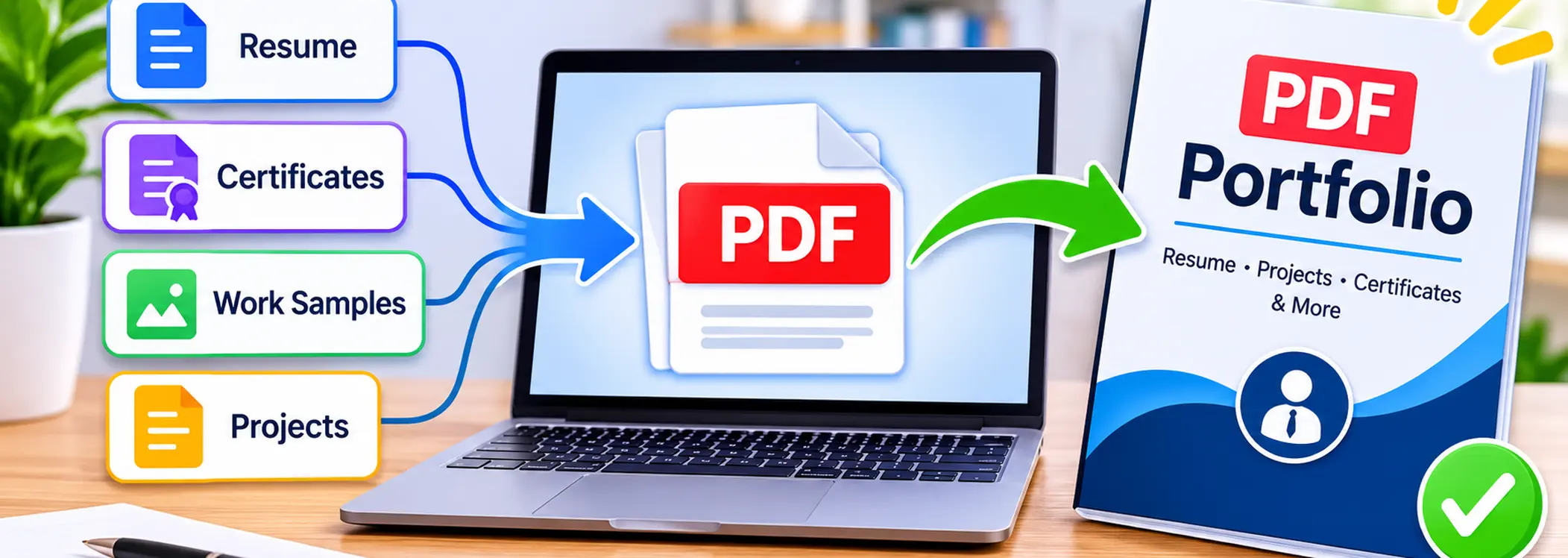
To create a PDF portfolio, collect your resume, certificates, project samples and other relevant documents, then arrange them in a logical order. Convert Word documents and image files into PDFs, combine the documents using a PDF merger, add page numbers and check the final file before sharing it.
A single PDF portfolio makes it easier for employers, clients or reviewers to see your experience and work in one place. You do not need to send several separate attachments or ask someone to open different file formats.
This guide explains how to prepare a professional portfolio using documents and images you already have. It also shows how to combine and organize everything with online PDF tools.
What Is a PDF Portfolio?
A PDF portfolio is a collection of professional or academic work saved as one PDF document. It can show your experience, qualifications, projects, skills and achievements.
For example, a graphic designer might include selected designs, a resume and client projects. A student may include assignments, certificates, research work and project reports.
Different industries need different portfolio content. Designers, writers, developers, photographers, marketers, teachers and researchers can all use a PDF portfolio to demonstrate their work.
A well-prepared portfolio should help someone understand what you do and what you can deliver.
Important distinction: This guide explains how to create one regular PDF document containing your portfolio pages. It does not cover Adobe Acrobat's separate multi-file PDF Portfolio feature.
What Should You Include in a PDF Portfolio?
The content depends on your profession and the purpose of the portfolio. However, a few sections can make most portfolios easier to understand.
Portfolio section | What to include |
|---|---|
Cover page | Your name, profession and contact details |
Introduction | A short professional summary |
Resume or CV | Your experience, qualifications and skills |
Work samples | Selected projects or examples of your work |
Project descriptions | Your role, tools and contribution |
Certificates | Relevant training and qualifications |
Achievements | Awards, publications or important results |
Contact page | Email, LinkedIn and professional website |
You do not need to include every document you have ever created. Select work that supports the position, client or opportunity you are targeting.
The University of California, Davis Career Center recommends choosing relevant work samples instead of presenting every project in chronological order. It also advises candidates to explain their contributions and tailor portfolios to their audience. Read its portfolio guidance.
How to Choose the Right Work Samples
The quality of your examples matters more than the number of pages.
Start with three to five strong projects if you are creating a compact portfolio. You can include more when the job or industry requires a broader collection.
For each project, explain:
Project title: Give the work a clear name.
Date: Mention when you completed it.
Objective: Explain what the project needed to achieve.
Your role: Describe your personal contribution.
Tools used: Mention the software, platforms or methods involved.
Outcome: Share a result or important takeaway when you can support it.
For example, a digital marketing portfolio could include a content strategy, a website audit, a keyword research sample and a campaign report.
Avoid presenting another person's work as your own. When you include a team project, explain which parts you handled and credit other contributors where appropriate.
How to Create a PDF Portfolio Step by Step
You can build your portfolio from existing Word documents, PDFs, JPG photographs and PNG graphics. The following workflow helps you turn those separate files into one organized document.
Step 1: Plan Your Portfolio Structure
Before combining anything, decide what the final document should contain.
A simple order could look like this:
Cover page
Short professional introduction
Resume or CV
Table of contents
Selected projects and work samples
Certificates and qualifications
Achievements or supporting documents
Contact information
Adjust this order to match your profession. A designer may place visual work before certificates, while a researcher may give more space to publications and project reports.
Keep the most relevant material near the beginning so readers can understand your strengths without searching through unnecessary pages.
Step 2: Create Your Cover Page and Introduction
A cover page gives your document a clear identity.
Include your full name, professional title, email address and a relevant visual. You can also add a short introduction explaining your experience or main area of work.
For example:
Digital Marketing Portfolio
Name: Your Name
Specialization: SEO and Content Marketing
Email: yourname@example.com
LinkedIn: Your Professional Profile
You can create this page in Microsoft Word and convert it using the PDFClicks Word to PDF converter. It accepts DOC and DOCX documents up to 20 MB.
Save the cover page as a separate PDF. You can combine it with your other portfolio documents later.
Step 3: Prepare Your Project Images and Design Samples
Many portfolios contain images instead of completed PDF documents. These may include graphic designs, photography, website screenshots, charts, certificates or visual project samples.
Convert your JPG images with JPG to PDF. The tool accepts JPG and JPEG images up to 20 MB each and lets you choose page size and orientation.
For PNG graphics, use PNG to PDF to place multiple images into a PDF document.
Consider these presentation tips:
Use clear, high-resolution images.
Keep text readable when the page is viewed on a phone.
Crop unnecessary background areas before conversion.
Choose landscape orientation for wide designs.
Add a short description when an image needs context.
A screenshot without an explanation may not tell a reviewer what you actually accomplished. Add a caption or project description in your source document before converting it.
Step 4: Turn Scanned Certificates and Paper Documents into PDF
Some portfolio materials exist only on paper. These might include training certificates, awards, signed letters or printed project samples.
You can photograph them with your phone and convert the images into a PDF using PDFClicks Scan to PDF.
The tool supports JPG and PNG photographs up to 20 MB each, with up to 20 images in one conversion.
For a cleaner result, place each document on a flat surface and use good lighting. Keep your phone straight above the page to avoid distorted edges.
After conversion, open the PDF and check that names, dates, certificate numbers and other details remain readable.
Step 5: Combine All Your Portfolio Files into One PDF
Once you have prepared the separate documents, you can combine them into one portfolio.
For example, you may have:
A cover page PDF
A resume PDF
A project samples PDF
A certificates PDF
A final contact page PDF
Open PDFClicks Merge PDF and upload the documents.
Follow these steps:
Select the PDF files you want to combine.
Check the order in which you want them to appear.
Arrange the documents from the cover page to the final section.
Start the merging process.
Download the combined PDF.
Open the finished document and review its pages.
PDFClicks Merge PDF supports 2 to 20 PDF files per operation, with a maximum of 20 MB per uploaded file.
When you have more than 20 separate documents, combine them in batches and then merge the resulting PDFs.
Tip: Keep your original files in a separate folder. That way, you can rebuild the portfolio when you need to replace an outdated resume or add a new project.
Step 6: Arrange the Pages in the Correct Order
Sometimes the documents look correct individually but appear in the wrong sequence after merging.
For example, a certificate might appear before the project it supports, or a blank page could remain between two sections.
Use PDFClicks Organize PDF to view the pages, move them into the required order, rotate individual pages or remove unnecessary ones.
The tool accepts one PDF up to 20 MB.
Review the page sequence carefully. A clear structure helps employers and clients find relevant examples quickly.
Step 7: Add Page Numbers to Your Portfolio
Page numbers make longer portfolios easier to navigate and reference.
You can add them after combining all the documents. Open PDFClicks Page Numbers and upload your portfolio PDF.
The tool supports a PDF up to 20 MB. You can choose the numbering position, starting number and format.
For a portfolio with a cover page, use the Skip first page option. You can also use a format such as "Page {n} of {total}" to show the current page and total page count.
This creates a more organized document, especially when it contains several projects and certificates.
Step 8: Compress Your PDF for Easier Sharing
A portfolio with high-resolution images and many pages can become a large file.
This may cause problems when a job portal, email service or client platform has a file-size limit.
Use PDFClicks Compress PDF to reduce the document size before sharing it.
Alternatively, Merge and Compress PDF combines multiple PDFs and compresses the resulting file in one workflow. It accepts up to 20 PDFs, with a maximum of 20 MB per file.
After compression, open the new file and inspect the images and text. Strong compression can affect visual quality, especially on pages containing small text or detailed graphics.
Do not submit a blurry portfolio just to meet an upload limit. If the result becomes difficult to read, prepare a better-balanced version.
Step 9: Protect Your Portfolio When Necessary
Some portfolios contain private client work, personal details or confidential project documents.
When you need to restrict access, use PDFClicks Protect PDF to add an opening password to the final document.
The tool accepts one PDF up to 20 MB and also offers permission settings for printing, modifying and copying content.
However, check the recipient's instructions before protecting your portfolio. An employer or application portal may need to open the document directly.
For public job applications, an ordinary PDF without a password is usually more convenient unless the receiving organization requests protection.
How to Make Your PDF Portfolio Look Professional
Combining documents is only part of the process. The final presentation also affects how easily people can review your work.
Use a Consistent Page Layout
Keep fonts, headings, colors and spacing consistent throughout the portfolio.
Different projects may have different visual styles, but the overall document should still feel organized. Avoid placing unrelated colors, font sizes and layouts on every page.
Write Short Project Descriptions
Readers should understand each example without guessing.
Add a short explanation of the project's purpose, your contribution and the outcome. Use simple language and focus on information that demonstrates your skills.
Keep Images Readable
A design screenshot or certificate should remain clear when someone opens the PDF on a laptop or phone.
Avoid stretching small images to fill an entire page. Use the right orientation and leave enough space around important content.
Check Your Links and Contact Details
Make sure your email address, LinkedIn profile and website links work.
A portfolio may contain excellent work, but a reviewer cannot contact you when your details are missing or incorrect.
Credit Work That Belongs to Others
When you include a team project, identify your contribution. Do not claim responsibility for designs, writing, photographs or results created by someone else.
This helps readers understand your actual experience.
Remove Unnecessary Personal or Client Information
Review each document before sharing it. Remove private contact details, client records, account information and confidential material that you do not have permission to disclose.
You can also keep a separate private version of your portfolio when you need to show different work to different audiences.
Common PDF Portfolio Mistakes to Avoid
Including Too Many Projects
A portfolio does not need to show every task you have completed.
Select examples that match the opportunity. Remove old, repetitive or unrelated work.
Combining Files Without Checking Their Order
A merged file can still look disorganized when the pages appear in the wrong sequence.
Review the complete document from the cover page to the final contact page before sending it.
Uploading a Very Large PDF
High-resolution images can make a portfolio difficult to upload or share.
Compress the final file when necessary, but check the quality after processing.
Using Unclear Project Descriptions
A collection of screenshots does not always explain what you achieved.
Add short descriptions, identify your role and explain the purpose of each example.
Forgetting to Update Your Resume
An outdated resume can weaken an otherwise strong portfolio.
Check your work history, professional title, email address and qualifications before exporting the final version.
Sharing Confidential Work
Some client projects and workplace documents cannot be shared publicly.
Remove restricted information and get permission when necessary. Never include private client files simply because they demonstrate your skills.
Frequently Asked Questions
How do I create a PDF portfolio for a job application?
Collect your resume, selected work samples, certificates and relevant project reports. Prepare a cover page, convert supported documents and images into PDFs, then combine them into one organized file. Review the document and follow the employer's upload instructions.
How many pages should a PDF portfolio have?
There is no fixed page limit for every profession. Keep it focused and include only relevant work. A short portfolio with clear examples can be more useful than a long document containing repetitive material.
Can I create a PDF portfolio from JPG and PNG images?
Yes. Convert JPG or JPEG files with JPG to PDF and PNG files with PNG to PDF. You can then combine the resulting PDFs with your other portfolio documents.
Can I combine my resume and certificates into one PDF?
Yes. Convert the resume and certificates into PDF format, then use a PDF merger to place them in one document. You can arrange the pages in the order you prefer.
Can I create a PDF portfolio without Adobe Acrobat?
Yes. You can prepare your cover and project pages in a document or design application, then use browser-based PDF tools to convert, combine, arrange, number and compress the files. You do not need Adobe Acrobat just to assemble a standard PDF portfolio.
How do I reduce my PDF portfolio size?
Use a PDF compressor after combining your documents. Check the final version to make sure images, graphics and small text remain readable.
Should I include my resume in a PDF portfolio?
For many job applications, including a resume is useful because it gives readers a quick overview of your background. However, follow the instructions for the specific role or application.
Can I update my PDF portfolio later?
Yes. Keep your original Word files, images and separate PDFs. When you complete a new project or update your resume, replace the relevant document and create a fresh combined PDF.
Should I password-protect a PDF portfolio?
Only when you need to restrict access and the recipient can accept a protected PDF. Check the application instructions first because password-protected files may create problems for automated submission systems.
Final Thoughts
A professional PDF portfolio brings your resume, project samples, certificates and achievements into one organized document. It gives employers and clients a practical way to review your experience without opening several separate files.
Start by choosing your strongest work. Prepare the cover and supporting documents, convert images into PDFs, combine everything and arrange the pages in a logical order.
Before sharing the finished portfolio, check the layout, page numbers, images, links and file size. Keep your original documents so you can update the portfolio whenever your experience grows.
The best portfolio is not necessarily the longest one. It is the one that presents relevant work clearly and helps the reader understand what you can do.